
DocumentationIntegrationsN8n
Get Your Account Information
Learn how to retrieve your MrScraper account information inside n8n with the MrScraper node, and store the returned data in Google Sheets.
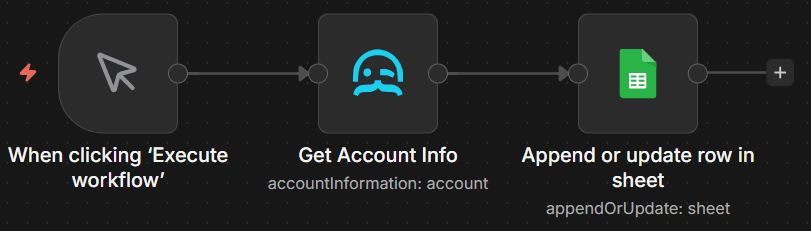
This example workflow demonstrates how to:
- Retrieve your MrScraper account information directly in n8n
- Store the returned account data in Google Sheets for tracking and reuse
Note
This guide uses the exact working three-node workflow: Manual Trigger, MrScraper Get Account Info, and Google Sheets Append or Update Row.
Workflow Setup
Set Up the Manual Trigger
- Add a Manual Trigger node called When clicking 'Execute workflow'.
- Use this trigger to run the workflow on demand whenever you need updated account data.
Get Account Information from MrScraper
- Add the MrScraper node called Get Account Info.
- Configure your MrScraper credential in Credential to connect with:
- Click Create new credential
- Paste your MrScraper API token
- Save the credential
- Configure the node:
- Resource:
Account - Operation:
Get Account Info
- Resource:
This node returns your account information as JSON output for downstream nodes.
Append or Update the Data in Google Sheets
- Add a Google Sheets node called Append or update row in sheet.
- Connect your Google credential:
- Click Create new credential if needed
- Complete the OAuth flow and save
- Configure the node:
- Operation:
Append or Update - Document: select your target spreadsheet
- Sheet: select your target tab
- Columns: choose Auto-map Input Data
- Operation:
- Keep optional settings at defaults unless your sheet requires custom matching behavior.
This writes the account information from MrScraper into your selected Google Sheet.