
Learn how to connect your scraper to email so you receive a notification whenever a MrScraper scrape starts, completes, or fails.
What Are Email Connections?
Email connections let you receive an email notification when specific events happen in your scraper, such as when a scrape starts, completes, or fails.
Key Features
Instant Notifications
Get real-time updates on your scraper's status directly in your inbox.
Customizable Alerts
Choose which events you want to be notified about, such as completion or errors.
Create an Email Connection
There are two ways to create an email connection in MrScraper:
1. Scraper
Select the scraper that you want to add an email connection.
Scraper page -> Ellipsis ( ⋮ ) button -> Email Notifications -> Add new Email Connection.
Email Connection page -> + icon in the top-right corner.
Fill in the email connection details:
- Email Address: The email address to which the notification should be sent
Click Submit to save your email connection.
2. Settings
Open your MrScraper dashboard.
Click the gear icon -> select Email Connection.
Email Connection page -> + icon in the top-right corner.
Fill in the email connection details:
- Email Address: The email address to which the notification should be sent
Click Submit to save your email connection.
Connect Email Notification to Scraper
After creating the email connection, follow these steps to connect it to your scraper:
Go to your chosen Scraper page.
Click the Ellipsis ( ⋮ ) button and click Email Notifications.
Select the email connection you just created from the dropdown menu.
Click Save Email Notifications.
Example Result
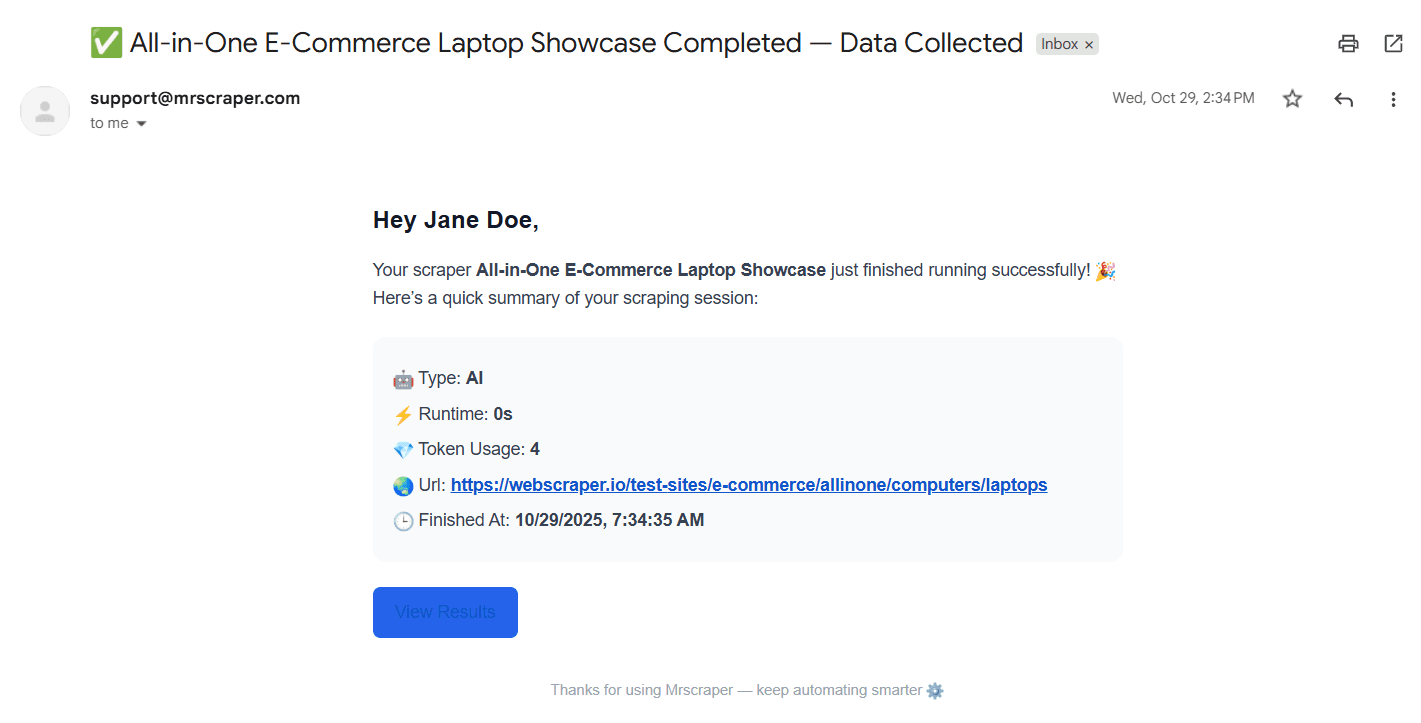
Once the scraper finished, you will receive an email notification. Depending on the email type you selected, the email will contain either the result in the email body or as an attachment. Here's an example of what the email might look like:
Bulk Scraping With Custom Scraper
Run one custom scraper workflow against many URLs in a single bulk submission, then poll the returned submission ID for progress and results.
SQL/Database
Learn how to connect your MrScraper scrapers to an external SQL database so scraped data lands in structured tables ready for analysis and reporting.