
Zapier
Learn how to connect MrScraper to Zapier so you can trigger scraping jobs, automate data collection, and build workflows with triggers and actions.
Zapier is a powerful automation tool that allows you to connect different apps and services together. By integrating MrScraper with Zapier, you can automate workflows and streamline your data extraction processes.
What is the MrScraper Zapier Integration?
The MrScraper Zapier integration connects MrScraper with Zapier, allowing you to trigger scraping jobs, automate data collection, and build workflows using MrScraper actions and triggers.
Available Triggers
- New Result: Triggers when a new scraping result (succeeded or failed) is available.
- Scrape Completed: Triggers when a scrape job completes successfully.
- Scrape Failed: Triggers when a scrape job fails.
- Scrape Started: Triggers when a scrape job starts.
- Specific Scraper New Result: Triggers when a new scraping result (succeeded or failed) is available for a specific scraper.
Available Actions
- Get Latest Result: Fetch the most recent result from a specified MrScraper scraper.
- Run AI Scraper: Trigger an AI scraper run with optional URL overrides.
- Run Manual Scraper: Trigger a manual scraper run with optional URL overrides.
Why Use Zapier with MrScraper?
Integrating MrScraper with Zapier offers several benefits:
- Automation: Automate repetitive tasks such as data extraction and processing.
- Flexibility: Connect MrScraper with over 3,000 apps available on Zapier.
- Efficiency: Save time by eliminating manual data handling.
Prerequisites
Before you start, make sure you have:
- A MrScraper API token.
- A MrScraper scraper with API access enabled.
- Access to Zapier.
Integration Steps
Add MrScraper Node
- Open the zapier editor.
- Click on Add a Step and select MrScraper from the list of available apps.
Configure Trigger (Optional)
- Add an account by entering your MrScraper API token.
- Select one of the available trigger events:
- New Result
- Scrape Completed
- Scrape Failed
- Scrape Started
- Specific Scraper New Result
- For most triggers, no additional fields are required.
- If you choose Specific Scraper New Result, configure the required field below:
| Parameter | Required | Description |
|---|---|---|
| Scraper ID | Yes | The ID of the scraper you want to listen to. You can find this on the scraper page in MrScraper. |
Configure the MrScraper Action Node
- Choose the desired action (e.g., Get Latest Result).
- Configure the action parameters as needed.
Get Latest Result
| Parameter | Required | Description |
|---|---|---|
| Scraper ID | Yes | The ID of the AI scraper you want to run. You can find this on the scraper page in MrScraper. |
Run AI Scraper
| Parameter | Required | Description |
|---|---|---|
| Scraper ID | Yes | The ID of the manual scraper you want to run. You can find this on the scraper page in MrScraper. |
| URL | Yes | Override the default target URL for this run. |
Run Manual Scraper
| Parameter | Required | Description |
|---|---|---|
| Scraper ID | Yes | The ID of the scraper you want to run. You can find this on the scraper page in MrScraper. |
| URL | Yes | Override the default target URL for this run. |
Example Workflows
Scheduled Scraping to Google Sheets
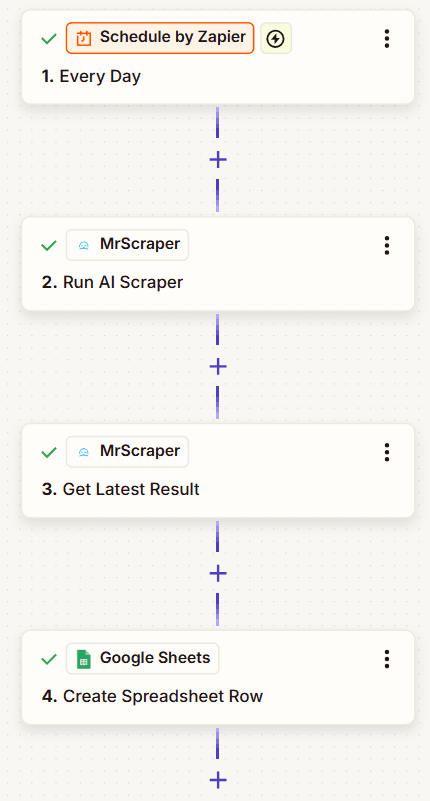
This workflow automatically runs a scraper on a schedule and saves the results to Google Sheets. Perfect for tracking prices, monitoring listings, or collecting data over time.
Set Up the Schedule
- Add a Schedule node.
- Configure the interval (e.g., every hour, daily, weekly).
Run the Scraper
- Add the MrScraper node.
- Select Run AI/Manual Scraper as the Action event.
- Enter your Scraper ID and URL.
Fetch the Results
- Add another MrScraper node.
- Select Get Latest Result as the resource.
- Enter the same Scraper ID.
Save to Google Sheets
- Add a Google Sheets node.
- Select Create Spreadsheet Row action.
Multi-URL Scraping Loop
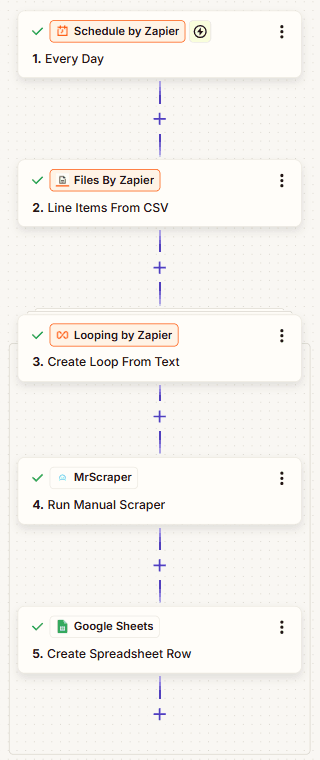
This workflow scrapes multiple URLs from a list and processes each result.
Tips
This flow is ideal for batch scraping tasks.
Prepare the URL List
- Add a Schedule node.
- Add a Line Items From CSV node to generate a list of URLs.:
https://example.com/page1
https://example.com/page2
https://example.com/page3
Loop Through URLs
- Add a Create Loop From Text node to iterate through each URL.
- Set Values to Loop to the output of the previous node (Line Items From CSV in Files > Line Items).
Scrape Each URL
- Add the MrScraper node inside the loop.
- Select Run AI/Manual Scraper as the Action event.
- Use the URL from the previous step.
Save Results
- Add a Google Sheets node.
- Select Create Spreadsheet Row action.