
Map & Listing & General Agents
Build an n8n workflow that chains the Map, Listing, and General Agents to discover pages, collect item URLs, and scrape details from every one.
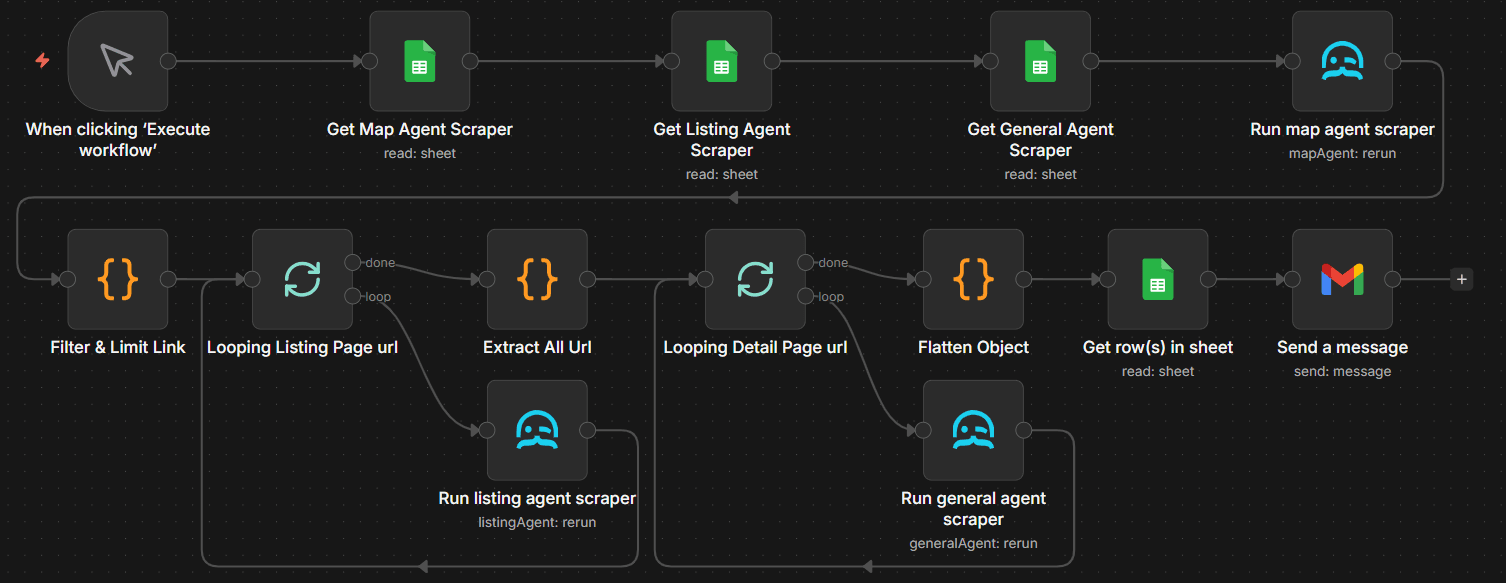
This workflow provides the most comprehensive scraping setup by combining three agents for maximum coverage:
-
Map Agent: Crawls the website to discover all listing and category pages
-
Listing Agent: Extracts individual property or product URLs from paginated listing pages
-
General Agent: Visits each extracted URL to scrape detailed data from individual pages
Tip
This approach works well for large-scale real estate or e-commerce data extraction.
Set up All Agents
Create and configure the Map Agent, Listing Agent, and General Agent so each one is ready to perform its specific role in the workflow.
Set Up the Manual Trigger
- Add a Manual Trigger node called "When clicking 'Execute workflow'".
- This allows you to run the complete three-agent workflow on demand.
Load Map Agent Configuration
- Add a Google Sheets node called "Get Map Agent Scraper".
- Select Read Rows or Lookup operation.
- Authenticate with your Google account.
- Select the Google Sheets file that stores your Map Agent Scraper ID and target URL.
Note
If you have not yet created a spreadsheet containing scraper IDs and target URLs, refer to the
Create a Scraper guide to configure your Google Sheets.
- This node reads the Map Agent scraper ID and target URL from your sheet.
Load Listing Agent Configuration
- Add another Google Sheets node called "Get Listing Agent Scraper".
- Connect it after the "Get Map Agent Scraper" node.
- Select the Google Sheets file that stores your Listing Agent Scraper ID and target URL.
Note
If you have not yet created a spreadsheet containing scraper IDs and target URLs, refer to the
Create a Scraper guide to configure your Google Sheets.
- This loads the Listing Agent scraper ID for processing listing pages.
Load General Agent Configuration
- Add a third Google Sheets node called "Get General Agent Scraper".
- Connect it after the "Get Listing Agent Scraper" node.
- Select the Google Sheets file that stores your General Agent Scraper ID and target URL.
Note
If you have not yet created a spreadsheet containing scraper IDs and target URLs, refer to the
Create a Scraper guide to configure your Google Sheets.
- This loads the General Agent scraper ID for extracting property details.
Run the Map Agent
Execute the Map Agent to crawl the website and discover all listing pages.
Run the Map Agent
- Add the MrScraper node called "Run map agent scraper".
- Set Resource to Scraper Run, Operation to Run Existing Scraper, Scraper Type to AI, and Agent Type to Map.
- Configure using values from Google Sheets:
- Scraper ID:
{{ $json.mapScraperId }} - URL:
{{ $json.mapTargetUrl }} - Include Patterns:
{{ $json.mapIncludePatterns }} - Exclude Patterns:
{{ $json.mapExcludePatterns }}
- Scraper ID:
- The Map Agent discovers all listing pages on the website.
Filter & Limit Listing Pages
- Add a Code node in JavaScript called "Filter & Limit Link".
- Filter discovered URLs to only listing pages and limit the count:
// Configuration
const MAX_URLS = 3; // Change this to limit listing pages

// Get the data from the previous node
const inputData = $input.all();

// Extract URLs from the response
let urls = [];

if (inputData.length > 0 && inputData[0].json.data && inputData[0].json.data.urls) {
  urls = inputData[0].json.data.urls;
}

// Filter URLs that contain your listing pattern
const filteredUrls = urls.filter(url =>
  url.includes('/cayman-islands-real-estate-listings')
);

// Limit the number of listing pages
const limitedUrls = filteredUrls.slice(0, MAX_URLS);

// Return as separate items for looping
return limitedUrls.map((url, index) => ({
  json: {
    url: url,
    index: index + 1,
    totalUrls: limitedUrls.length
  }
}));- Adjust
MAX_URLS(default: 3) and the filter pattern to match your listing pages.
Process Listing Pages
Loop through discovered listing pages and extract property URLs using the Listing Agent.
Loop Through Listing Pages
- Add a Split in Batches node called "Looping Listing Page url".
- This processes each listing page URL one at a time.
- Keep Reset unchecked to continue looping.
Run the Listing Agent
- Add the MrScraper node inside the loop called "Run listing agent scraper".
- Set Resource to Scraper Run, Operation to Run Existing Scraper, Scraper Type to AI, and Agent Type to Listing.
- Configure using the scraper ID from Google Sheets:
- Scraper ID:
{{ $('Get Listing Agent Scraper').item.json.listingScraperId }} - URL:
{{ $json.url }} - Max Pages: Set how many result pages to scrape per listing (e.g., 2)
- Timeout: 720 seconds
- Scraper ID:
- This extracts all property URLs from each listing page.
- Connect this node back to the "Looping Listing Page url" node to continue.
Extract All Property URLs
- Add a Code node in Python called "Extract All Url".
- Parse listing responses to collect all unique property URLs:
items = []
urls = set()

# Loop through ALL input items, not just one
for input_item in _input.all():
    payload = input_item.json

    # Extract URLs from response data
    response = payload.get("data", {}).get("response") or []
    for page in response:
        listings = page.get("data", {}).get("data") or []
        for listing in listings:
            url = listing.get("url")
            if isinstance(url, str) and url.strip():
                urls.add(url)

    # Extract the search link
    search_link = payload.get("data", {}).get("link")
    if isinstance(search_link, str) and search_link.strip():
        urls.add(search_link)

# Convert set to list of items
for url in urls:
    items.append({"json": {"url": url}})

return items
Extract and Process Property URLs
Extract all property URLs from listing responses and process them with the General Agent.
Extract All Property URLs
- Add a Code node in Python called "Extract All Url".
- Parse listing responses to collect all unique property URLs:
items = []
urls = set()

# Loop through ALL input items, not just one
for input_item in _input.all():
    payload = input_item.json

    # Extract URLs from response data
    response = payload.get("data", {}).get("response") or []
    for page in response:
        listings = page.get("data", {}).get("data") or []
        for listing in listings:
            url = listing.get("url")
            if isinstance(url, str) and url.strip():
                urls.add(url)

    # Extract the search link
    search_link = payload.get("data", {}).get("link")
    if isinstance(search_link, str) and search_link.strip():
        urls.add(search_link)

# Convert set to list of items
for url in urls:
    items.append({"json": {"url": url}})

return items
Loop Through Property URLs
- Add another Split in Batches node called "Looping Detail Page url".
- This processes each property URL one at a time.
- Keep Reset unchecked.
Run the General Agent
- Add the MrScraper node inside the second loop called "Run general agent scraper".
- Set Resource to Scraper Run, Operation to Run Existing Scraper, Scraper Type to AI, and Agent Type to General.
- Configure using the scraper ID from Google Sheets:
- Scraper ID:
{{ $('Get General Agent Scraper').item.json.generalScraperId }} - URL:
{{ $json.url }}
- Scraper ID:
- This extracts detailed information from each property page.
- Connect this node back to the "Looping Detail Page url" node to continue.
Export the Results
Finally, flatten the data, export it to Google Sheets, and send a notification email.
Flatten the JSON Data
- Add a Code node in JavaScript called "Flatten Object".
- Convert all nested JSON into flat structure:
function flattenObject(obj, prefix = '', result = {}) {
  for (const key in obj) {
    if (!Object.prototype.hasOwnProperty.call(obj, key)) continue;

    const newKey = prefix ? `${prefix}_${key}` : key;
    const value = obj[key];

    if (value === null || value === undefined) {
      result[newKey] = null;
    } else if (Array.isArray(value)) {
      result[newKey] = value.length ? value.join(', ') : null;
    } else if (typeof value === 'object' && !(value instanceof Date)) {
      flattenObject(value, newKey, result);
    } else {
      result[newKey] = value;
    }
  }
  return result;
}

const items = $input.all();
const output = items.map(item => {
  const flattened = flattenObject(item.json);
  return { json: flattened };
});

return output;
Save to Google Sheets
- Add a Google Sheets node called "Get row(s) in sheet".
- Select Append Row operation.
- Authenticate with your Google account.
- Select your destination spreadsheet and sheet (can be different from your configuration sheet).
- Map the flattened data fields to your columns.
Send Email Notification
- Add a Gmail node called "Send a message".
- Configure:
- To: Your email address
- Subject: "Multi-Agent Scraping Complete"
- Message: Include summary of total properties scraped
- This notifies you when the entire three-agent workflow completes.